Technical readiness guide
This guide is for organisations preparing to run the AI3 Working smarter with AI apprenticeship. It sets out what each learner needs access to, what is optional, and the kinds of workplace opportunity that turn that access into evidence.
The programme is grounded in the Microsoft 365 ecosystem, with Microsoft 365 Copilot at its centre. Learners are assessed against the Level 3 Digital Support Technician standard, ST0120. How that assessment works is set out on the How you are assessed page, and this guide assumes it.
Review this guide at least three months before a learner starts. Most requirements take some lead time, and the most valuable early conversations are not technical. They are about which line manager will support the learner, and what real work the learner will get to do.
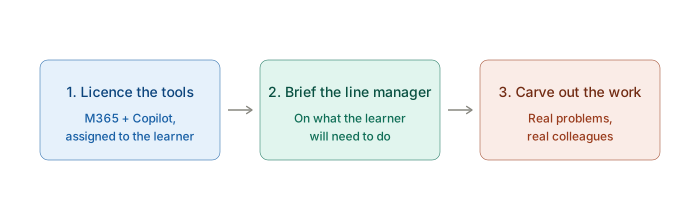
The short version
What each learner needs
What the workplace provides
That is the whole list. Power Automate and Copilot Studio are not on it, and the section on what is optional explains why.
Software access
The learner needs access to the following throughout the programme. There is overlap between what they need for our content and what they need for their job. This is by design, because the programme is about applying these tools at work rather than learning about them in the abstract.
Microsoft 365 with Copilot

This is the central requirement. The learner needs:
- A Microsoft 365 plan that includes the apps (Word, Excel, PowerPoint, Outlook, OneNote, Teams) with SharePoint and OneDrive. Most enterprise and business plans qualify: Microsoft 365 E3, E5, Business Standard, or Business Premium are the common ones.
- A Microsoft 365 Copilot licence on top of that base plan.
Note the distinction. "Copilot Chat", the free version available to anyone with a qualifying Microsoft 365 account, uses public web data and cannot reach into the organisation's own files, emails, Teams chats, or calendar. That is not enough for this programme. The learner needs the paid Microsoft 365 Copilot add-on, which connects Copilot to organisational data through Microsoft Graph and unlocks Copilot inside the apps.
The two are easy to mix up, because both are called "Copilot" in the interface and Microsoft markets them on the same pricing page. We want the paid one. Microsoft's pricing page lays them out side by side: Microsoft 365 Copilot pricing (enterprise). For organisations with up to 300 users, Microsoft 365 Copilot Business is the equivalent option.
What that one licence already covers
Almost everything the programme asks a learner to build sits inside the Microsoft 365 Copilot app itself, and is covered by that licence. It is worth knowing the names, because they are what the tutorials use:
COPILOT function, the Planner agent, meeting recaps, and image and video generation.Microsoft Teams
The learner needs Teams for both their work and our delivery. Workshops run in Teams, and coaching one to one happens there too. If your organisation uses a different platform internally, the learner still needs Teams access for our delivery. Most clients already have this through their Microsoft 365 plan.
A browser, and a way to capture evidence
The learner uses a standard modern browser for our learning platform. Portfolio tasks ask for evidence of real work, which usually means screenshots and sometimes a short screen recording, so the learner needs a device they can capture these on.
What is optional
Power Automate
Power Automate is not required for this programme. In an earlier version of AI3 it was, and this version has moved away from it deliberately.
The programme now teaches automation through the Workflows agent inside Microsoft 365 Copilot, and through the no-code Rules, Quick Steps and Approvals built into Microsoft Lists and SharePoint libraries. A learner completes the automation module, and the portfolio tasks that depend on it, without ever opening Power Automate.
Learners are still free to use it, and some will:
- Many Microsoft 365 plans include a standard tier of Power Automate at no extra cost, covering the standard connectors. Microsoft's types of Power Automate licences page is the current reference.
- If a learner already builds flows at work, that work is valid portfolio evidence and we will assess it on the same terms as anything else.
- If your organisation restricts Power Automate, or has not licensed it, the learner is not disadvantaged. Nothing in the programme depends on it.
Copilot Studio
Copilot Studio is not required either. Agent building is taught in Agent Builder, which is included with the Microsoft 365 Copilot licence.
Copilot Studio appears in the content only as a signpost, marking where Agent Builder stops and pointing at Microsoft's own comparison of the two. Nothing the programme asks for sits beyond Agent Builder.
If your organisation already licenses Copilot Studio and a learner wants to use it for a task, that is welcome. It is an addition, not a prerequisite.
Preview features and tenant variation
One honest caveat. Some of the Copilot features the tutorials use reach tenants through Microsoft's Frontier early-access programme rather than general release. The Workflows agent is the main one. Microsoft describes Frontier features as still in development, with availability and capability that may change.
What this means in practice:
- A learner's tenant may not have a given feature on the day they reach that module, and the interface may have moved on from our screenshots.
- Where that happens, the learning objective still stands. Automation, for example, can be evidenced through Lists and SharePoint rules and approvals, or through Power Automate if the learner has it.
- Coaches see this across cohorts and will steer a learner to an available route. Tell your coach early if a feature is missing rather than working around it alone.
What technical teams will likely need to do
Most of the work is licensing rather than configuration, but a few things are worth flagging for IT.
Opportunity for meaningful work
Licences get a learner started. What they build the year on is the work itself, because the standard assesses what they can do with these tools in a real workplace rather than what they know about them.
Most of this is already in place in the roles our learners come from, and none of it needs planning out in advance. The programme teaches the learner to find improvements worth making and to propose them, and a line manager who knows of a good one is welcome to say so. The Portfolio tasks page sets out what the learner produces. Here is what helps them produce it.
Colleagues the learner can help
Real documents and processes
Small problems to improve
Permission to suggest changes
Different kinds of work
Time to learn, in working hours
Data: what the learner does and does not need
This is not a data analytics apprenticeship. The learner does not need access to large or sensitive datasets. What they need is the data they already use day to day: documents, spreadsheets, lists, communications. These are there by definition, in the work they are doing.
Two notes for IT and information governance teams:
Talk to us early
We run this apprenticeship with you rather than handing over a checklist. If anything here is awkward to provide, whether a licence cost that needs justifying, a policy that sits in the way, or a line manager who would like a steer on supporting an apprentice, tell us. There is usually a route through, and the conversation is easier the earlier it happens.